Collaborative Editing
Usage Guide
Learn how to use the Collaborative Editing feature for real-time collaboration on content in your Directus project.
This guide covers the essential features you'll use when collaborating on content in real-time.
Visual Indicators
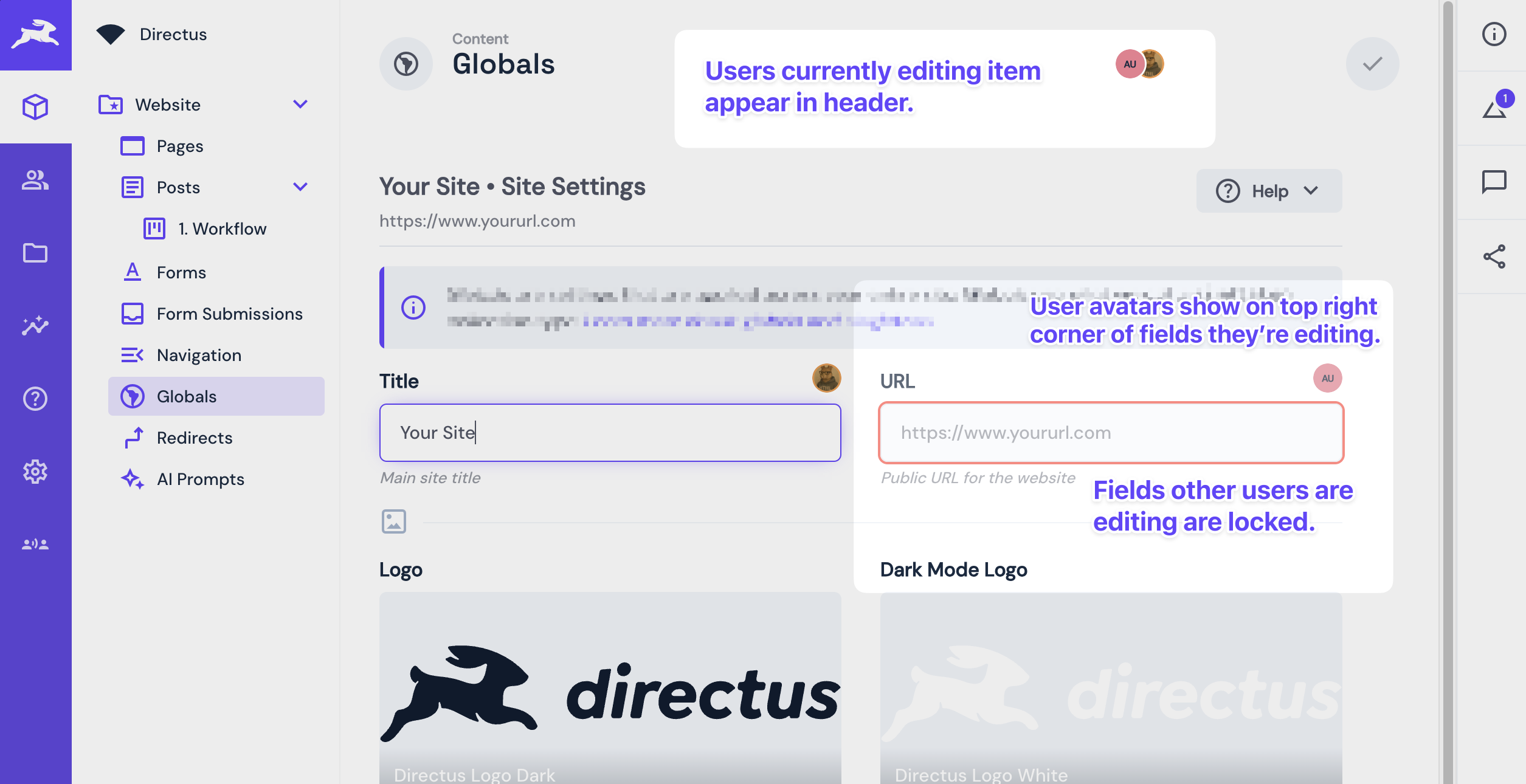
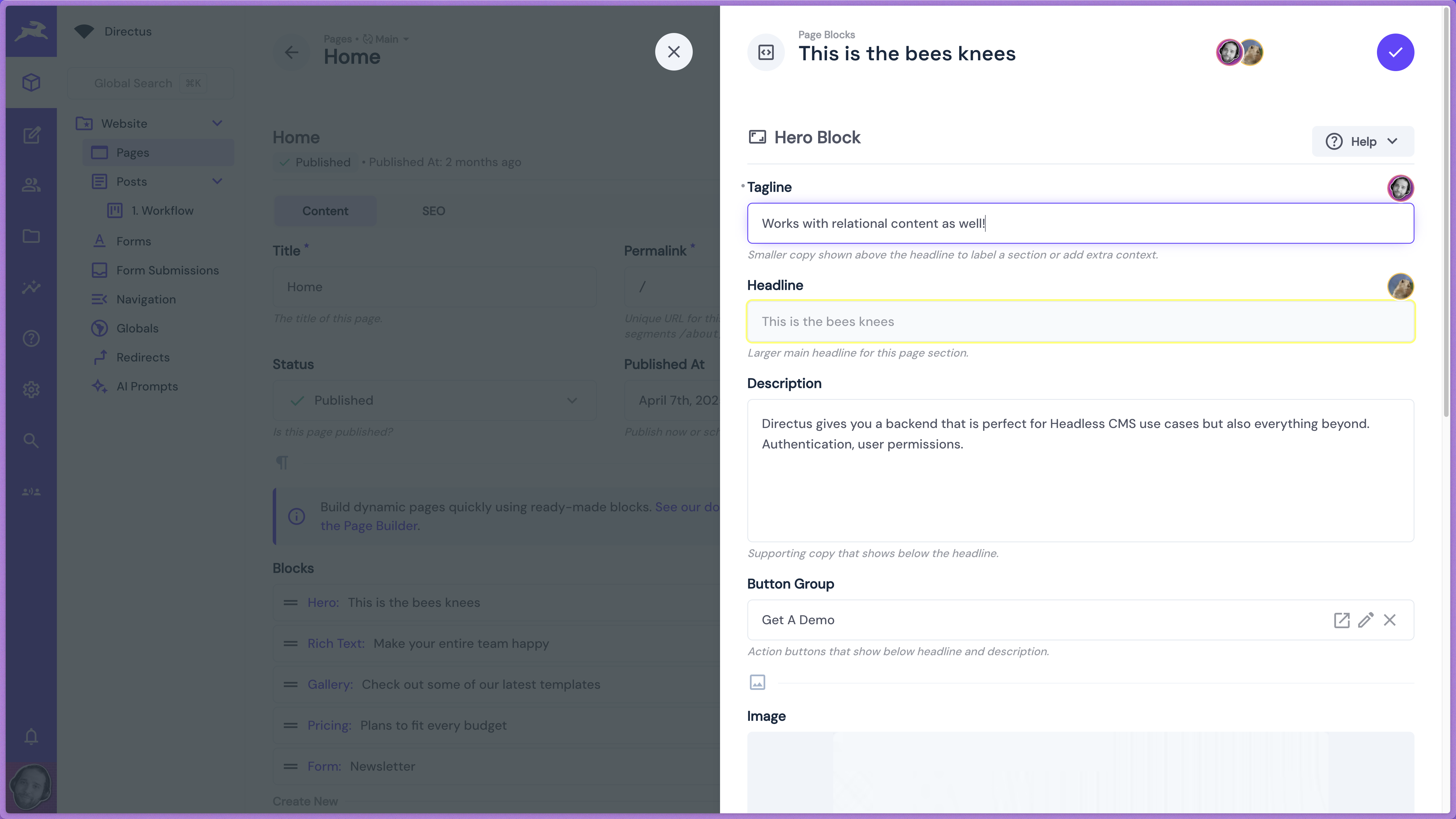
When you open any item for editing, you'll see collaboration indicators:
- User avatar stack - appears in the header to show how the users currently editing the item
- User avatars appear next to fields when someone is editing them
- Field locking prevents you from editing fields others are actively using
- Real-time updates show changes as they happen
Basic Usage
- Open any collection item
- Start editing - your avatar appears for others to see
- Other users' avatars show which fields they're working on
- Locked fields automatically unlock when users move away
Where It Works
Collaborative editing works across:
- All collections and items
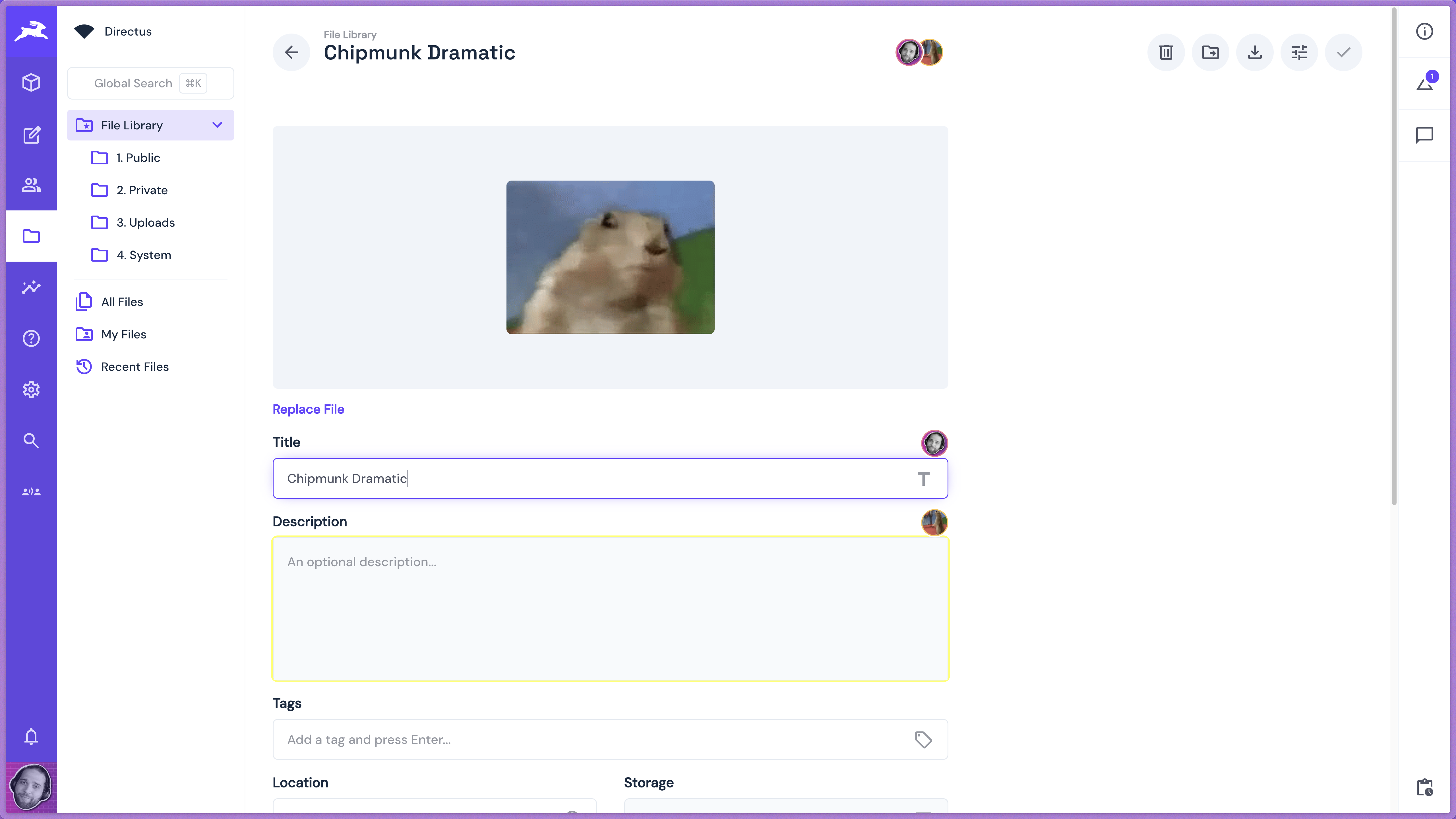
- File library
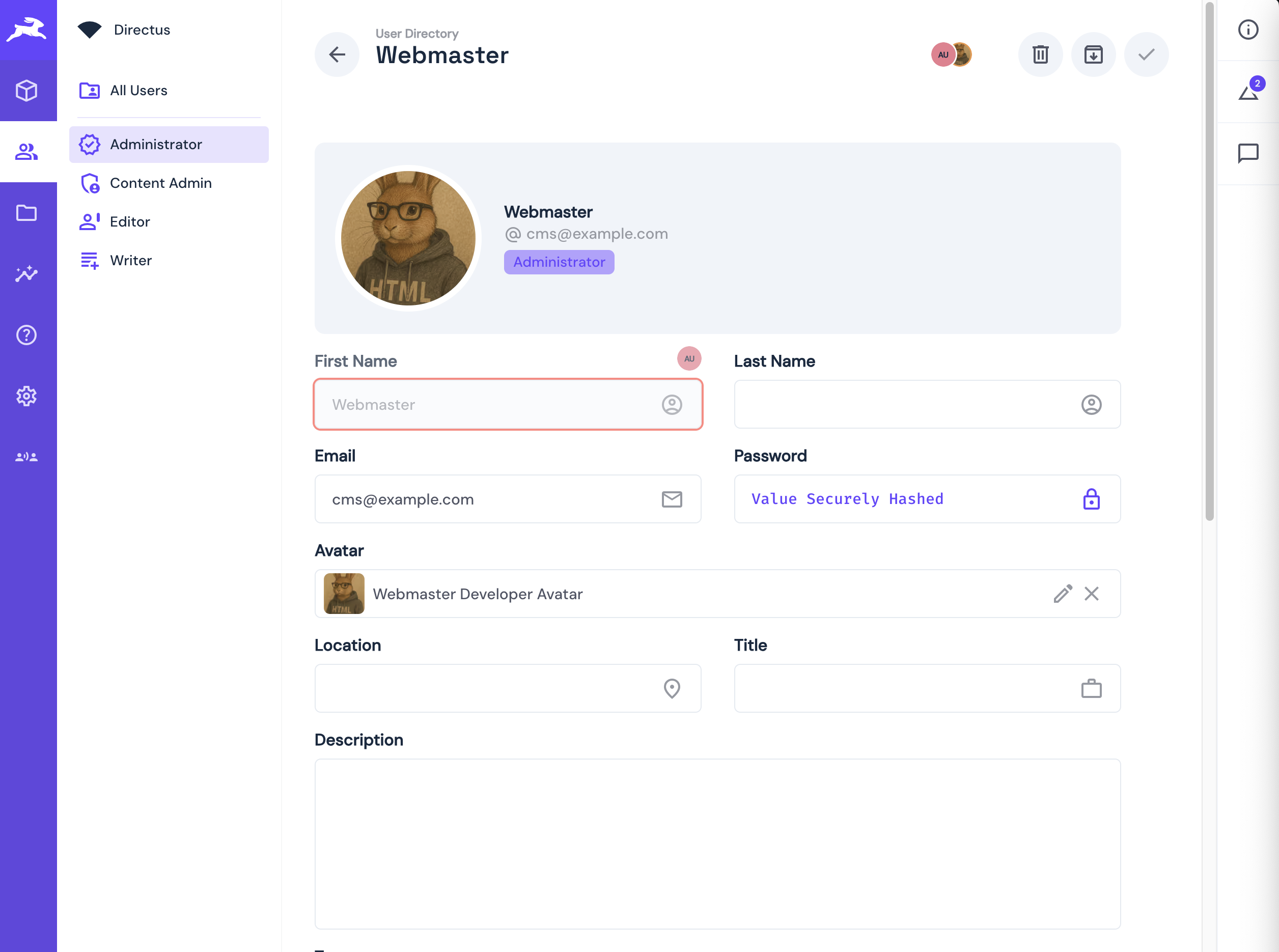
- User directory profiles
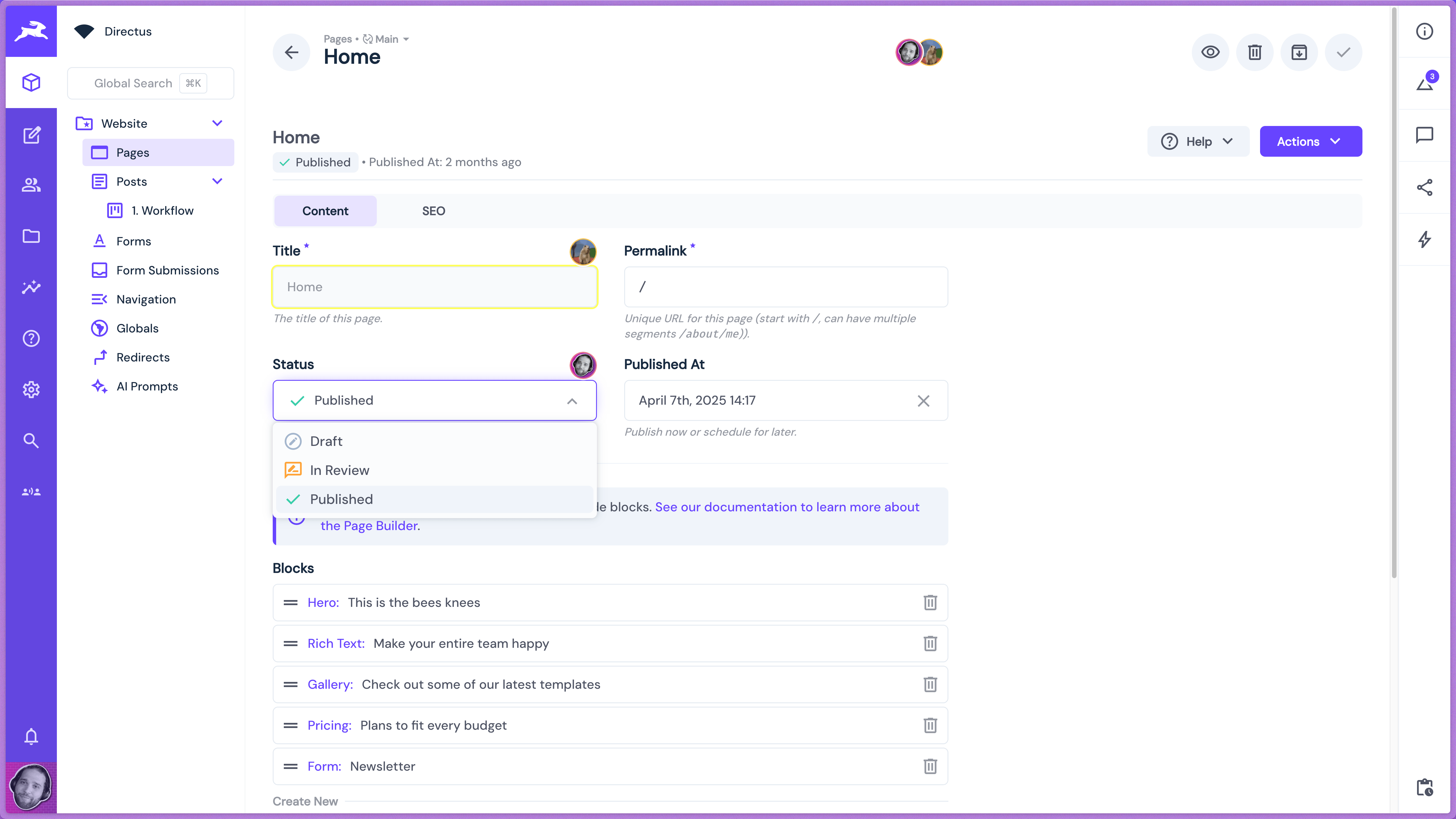
- Relational fields (even within) and page builders
Summary
Collaborative editing happens automatically once enabled. Multiple users can work on the same content simultaneously without conflicts, with clear visual indicators showing who's working where.
Next Steps:
- Test with teammates to see real-time collaboration in action
- Check out the Configuration Guide if you need to configure settings
Get once-a-month release notes & real‑world code tips...no fluff. 🐰